



Last month, a commercial print shop in Denver tried to migrate their 12-year-old pricing spreadsheet into a new management system. They lost three years of customer-specific pricing adjustments in the process. The owner spent two weeks manually rebuilding discounts for 400+ regular clients while fielding angry calls about incorrect invoices.
This wasn't a software problem. It was a migration planning problem.
After helping dozens of print shops move from spreadsheet chaos to proper operational platforms, the pattern is clear: shops that rush the migration end up spending triple the time fixing broken data. The ones that follow a methodical, staged approach are usually up and running within two weeks with all their historical data intact.
Why print shop spreadsheet migrations fail
Print shops accumulate operational data differently than most businesses. You've got pricing formulas buried in cells from 2015. Customer discounts stored as comments. Paper stock codes that only make sense to the person who created them eight years ago. Job templates referenced across 47 different tabs.
A typical print shop spreadsheet setup looks something like:
-
Master pricing sheet with 200+ formulas
-
Customer database spread across three workbooks
-
Job history in monthly tabs going back years
-
Inventory tracking that stopped being accurate in 2021
-
Quote templates referencing cells that no longer exist
When shops try to dump all of this into a new system at once, they discover their data is fundamentally incompatible with how modern software expects information to be structured. That pricing formula for wide-format prints? It references a cell that calculates square footage differently than the new system. Those customer categories you've been using? They don't map to standard industry classifications.
The real killer is historical job data. Most shops have thousands of completed jobs with pricing that made sense at the time but doesn't follow any consistent logic. A rush job from 2019 might have a 50% markup buried in the total. A longtime customer might have gotten special pricing that was never documented beyond someone changing the final number.
The stepwise migration approach that actually works
Instead of migrating everything at once, successful print shop migrations follow a staged approach. Start with the most critical, clean data and gradually work through the messier historical records.
Eliminate order confusion and delays.
GoInkly helps you manage every print order efficiently from submission to delivery.
- Centralized order tracking
- Production workflow management
- Inventory and supply monitoring
No credit card required
Here's the framework that's worked across multiple shop migrations:
Phase 1: Core operational data (Week 1) Start with data you need to operate tomorrow. Current customer list, active job templates, standard pricing, current inventory levels. This gets you operational quickly while buying time to clean up the rest.
Phase 2: Recent history (Week 2) Pull in the last 90 days of job history. This gives you enough data to spot patterns and validate that pricing is calculating correctly. If something's wrong, you'll catch it before migrating years of incorrect data.
Phase 3: Extended history (Weeks 3-4) Now tackle the historical data, but in reverse chronological order. Last year first, then the year before. Older data gets progressively messier, and by the time you're dealing with 2018 spreadsheets, you'll have learned all the quirks of the new system.
Here's a simple visual of the staged migration workflow.
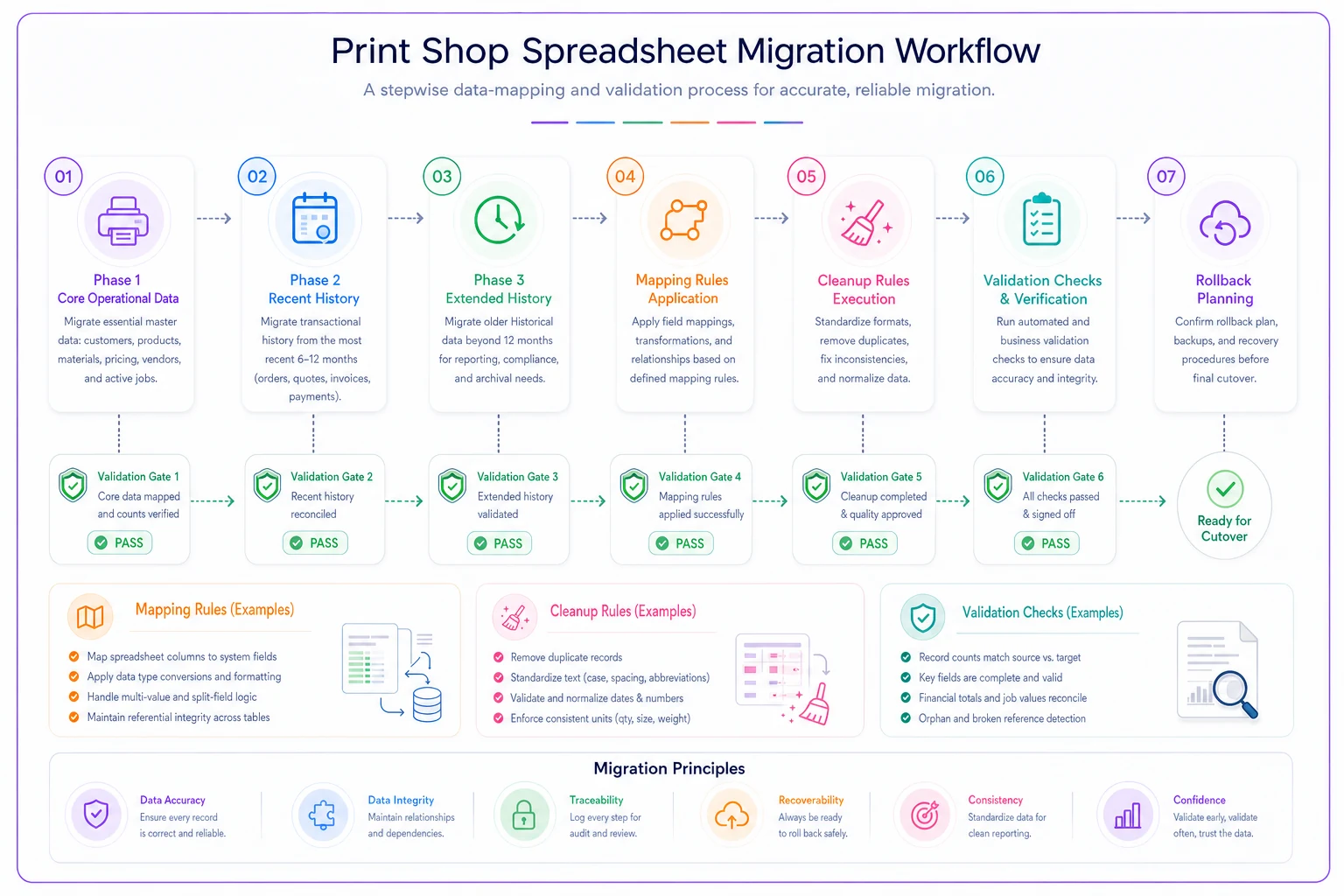
This staged approach gets you operational quickly while reducing the risk of migrating bad historical data.
Data mapping heuristics for print-specific fields
Print shops use terminology and data structures that don't always translate cleanly to standardized software. A "job" might mean different things depending on whether it's offset, digital, or wide-format. Your "rush charge" might be calculated as a percentage, a flat fee, or built into the base price depending on the customer.
The mapping process needs clear rules for these translations:
| Spreadsheet Field | System Field | Transformation Rule |
|---|---|---|
| Customer Name (various formats) | Customer.Name | Standardize to "Last, First" or "Company Name" |
| Job Type (15+ variations) | Job.Category | Map to 5 standard categories |
| Rush (Y/N/ASAP/TODAY) | Job.Priority | Convert to 1-5 scale |
| Price (with embedded formulas) | Job.Price | Calculate and store flat value |
| Paper Stock (custom codes) | Material.SKU | Create lookup table for conversion |
| Turnaround (text descriptions) | Job.DueDate | Parse to actual dates |
One offset printer in Austin had 23 different ways of marking rush jobs in their spreadsheets — everything from cell highlighting to adding "RUSH" directly in the customer name field. Creating a clear mapping rule (anything marked urgent = Priority 4, anything marked rush = Priority 3) eliminated hours of manual cleanup.
Cleanup rules for messy pricing history
Historical pricing data in print shops is almost always a mess. Quotes that were never converted to jobs. Jobs where someone manually adjusted the price without noting why. Pricing formulas referencing costs from three years ago.
Before migration, establish cleanup rules:
Rule 1: Flatten all formulas Convert every formula to its calculated value. That complex pricing formula might work perfectly, but if it references cells that won't exist in the new system, it's useless. Calculate the final price and migrate that number.
Rule 2: Document pricing exceptions For any job where the final price doesn't match the standard calculation, add a note explaining the variance. "20% loyalty discount," "Price match from competitor quote," "Included free shipping for order over $1,000."
Rule 3: Standardize units Some jobs are priced per piece, others per thousand, others by square foot. Pick one standard unit for each job type and convert everything. A shop in Phoenix discovered they'd been mixing up per-piece and per-hundred pricing for business cards for two years because different employees interpreted the spreadsheet differently.
Rule 4: Handle missing data consistently Decide upfront how to handle gaps. If a job has no material cost recorded, do you estimate based on similar jobs? Leave it blank? Use a default value? Whatever you choose, apply it consistently across the board.
Pilot job types before full migration
Never migrate all job types at once. Start with your simplest, most standardized work and validate that the migration process is actually working before moving to complex custom jobs.
A good pilot sequence:
-
Business cards and standard products — Consistent pricing, standard materials, predictable workflows. If you can't migrate business card orders correctly, you're definitely not ready for custom packaging jobs.
-
Digital printing jobs — Usually simpler pricing than offset, fewer variables, more recent data. Most shops have cleaner digital job records since the equipment is newer.
-
Offset printing — More complex pricing, multiple components, but still follows standard patterns. This tests whether your mapping rules handle multi-step jobs properly.
-
Wide format and specialty work — The most complex pricing, custom calculations, unusual materials. Save this for last when you've worked out all the migration kinks.
Start pilots with business cards to validate pricing calculations and square-footage conversions before moving to complex job types.
A shop running a pilot with just business card data discovered their new system calculated square footage differently than their spreadsheet, resulting in roughly 15% pricing discrepancies. Catching this on 50 test records saved them from migrating thousands of incorrect prices.
Validation checks at each migration step
Every phase needs specific validation before moving forward. These aren't just spot checks — they're systematic comparisons to catch problems before they compound.
Customer data validation:
-
Total customer count matches
-
Top 20 customers have correct pricing tiers
-
Customer categories properly assigned
-
Contact information transferred completely
Pricing validation:
-
Randomly sample 10% of migrated jobs
-
Recalculate pricing in old system and new system
-
Flag any variance over 2%
-
Verify special discounts are preserved
Historical data validation:
-
Monthly revenue totals match
-
Job count by type matches
-
Average job values within 5% of original
One shop in Portland ran parallel operations for a week — entering new jobs in both the old spreadsheet system and the new platform. This caught several issues: rush charge calculations were off, tax wasn't being applied to certain job types, and quantity breaks were rounding differently.
Building rollback plans for each phase
Not every migration goes smoothly. Having a clear rollback plan for each phase prevents panic when something goes wrong.
Your rollback plan needs three components:
1. Clear rollback triggers Define exactly what constitutes failure. Is it 10% of prices calculating incorrectly? Key customer data missing? Integration with accounting software breaking? Set specific thresholds that trigger a rollback before you start.
2. Data preservation strategy Before each migration phase, create a complete backup of both systems. Not just the data — the actual spreadsheet files with all formulas intact. Screenshot key reports. Export customer lists. You want to be able to return to exact pre-migration state.
3. Rollback timeline Decide in advance how long you'll try to fix issues before rolling back. Usually 24-48 hours for critical operational data, up to a week for historical records. One shop spent three weeks trying to fix a migration problem that could have been resolved by rolling back and trying a different approach.
Transform templates for common print shop data
Most print shops have similar data structures hidden in wildly different spreadsheet layouts. Having standard transform templates speeds up the migration process considerably.
Customer transform template:
Input: Various customer fields across multiple sheets
Output: Unified customer record with:
-
Unique ID
-
Company/Individual name
-
Primary contact
-
Billing address
-
Shipping address(es)
-
Payment terms
-
Pricing tier
-
Customer since date
-
Special instructions
Job history transform template:
Input: Job data from multiple sources
Output: Standardized job record with:
-
Job number
-
Customer ID
-
Order date
-
Due date
-
Job type
-
Quantity
-
Unit price
-
Total price
-
Materials used
-
Production notes
-
Invoice number
Inventory transform template:
Input: Various inventory tracking methods
Output: Current inventory with:
-
SKU
-
Description
-
Category
-
Current quantity
-
Unit of measure
-
Reorder point
-
Preferred vendor
-
Last purchase price
These templates work because they force you to make decisions about data structure before you start migrating. That inventory spreadsheet with 47 columns? You probably only need 8 of them in the new system.
The two-week migration timeline that minimizes disruption
Here's a realistic timeline based on actual shop migrations:
Week 1: Preparation and core data
-
Day 1-2
Data audit and cleanup rules
-
Day 3
Create transform templates
-
Day 4
Migrate core customer data
-
Day 5
Migrate product catalog and pricing
Week 2: History and validation
-
Day 6-7
Recent job history (90 days)
-
Day 8
Validation and corrections
-
Day 9-10
Extended history migration
-
Day 11
Final validation
-
Day 12
Parallel running
Week 3+: Optimization
-
Gradual migration of older history
-
Process refinement
-
Staff training on new workflows
This timeline assumes you're not trying to run major print jobs while migrating. Most shops schedule migrations during slower periods or dedicate weekend time to the process.
Common migration mistakes that break print shop operations
The worst migration disasters follow predictable patterns.
Mistake 1: Migrating corrupted formulas One shop migrated spreadsheet formulas that had been referencing deleted cells for two years. Every wide-format job came out priced at zero. They didn't catch it until a customer tried to order 50 banner stands essentially for free.
Mistake 2: Losing customer-specific pricing A promotional products printer had customer discounts buried in individual cells with no documentation. After migration, their biggest client's orders jumped 30% in price. The client threatened to leave before they could manually rebuild the discount structure.
Mistake 3: Mismatching job categories Mapping "Digital Print" from spreadsheets to "Short Run" in the new system seemed logical — until they realized their reports now showed zero digital revenue and couldn't track equipment utilization properly.
Mistake 4: Trusting old data too much Some of that historical data is just wrong. A screen printer discovered their 2019 inventory counts were off by thousands of units. They'd been adjusting around incorrect baselines for years without realizing it.
Setting up parallel validation workflows
The safest migrations run old and new systems in parallel for at least a week. This isn't about lack of confidence in the new system — it's about catching issues that only show up in real production scenarios.
Structure parallel running strategically.
Enter new orders in both systems but fulfill from the new one. This tests data entry workflows while keeping a backup record. If pricing comes out different, you can investigate immediately rather than finding out when a customer calls.
Use the old system for lookups and historical reference while the new system handles active operations. This gives staff time to adapt while maintaining access to familiar tools.
A digital printer in Seattle ran parallel systems for two weeks and caught a critical issue: their new system calculated shipping differently for multi-box orders. What looked like a small rounding difference added up to hundreds of dollars on large orders.
When to bring in migration specialists
Some migrations are too complex for internal handling. If you've got more than 10,000 historical jobs, pricing formulas spanning multiple spreadsheets, or integration with specialized equipment, it's worth getting help.
Signs you probably need a specialist:
-
Multiple failed migration attempts
-
Data spread across 10+ spreadsheets
-
Complex commission calculations
-
Multi-location inventory
-
Integrated accounting that can't be interrupted
The cost of a migration specialist — usually somewhere between $5,000 and $15,000 — seems high until you calculate what being down for a week or losing customer pricing history actually costs you.
Making the migration stick
The technical migration is only half the battle. If staff keeps sneaking back to the old spreadsheets, you haven't really migrated anything.
Lock the old spreadsheets to read-only after migration. Not deleted — you might need them for reference — but nobody should be updating them anymore. Create simple cheat sheets showing where familiar spreadsheet functions now live in the new system. That pricing formula everyone relied on? Show them exactly how to find the same calculation in the new platform.
One approach that works well: assign spreadsheet champions to become system experts. The person who maintained the quote spreadsheet becomes the quoting module expert. They already have the operational knowledge — they just need to learn the new interface.
Beyond migration: preventing future spreadsheet sprawl
After migration, shops often start creating new spreadsheets within six months. Someone needs a custom report, so they export to Excel. Someone else builds a "temporary" tracking sheet. Before long, you're back to spreadsheet chaos similar to what drives the need for proper order management in the first place.
Build reporting into your operational workflow from day one. If someone needs a custom report monthly, create it in the system. If they're regularly exporting data, find out why and fix the underlying issue.
Modern print shop management platforms with AI-powered automation help prevent this spreadsheet creep by adapting to your workflows rather than forcing you to work around them. When the system handles automatic data capture the way modern barcode systems do for inventory, there's far less temptation to maintain shadow spreadsheets on the side.
The goal isn't to eliminate spreadsheets entirely — they're still useful for analysis and planning. But operational data should live in operational systems, not in files scattered across desktop folders and shared drives.
Measuring migration success
A successful migration isn't just about moving data — it's about actually improving operations. Three months post-migration, you should see:
-
Order entry time reduced by at least 40%
-
Pricing errors down to near zero
-
Customer history accessible in seconds, not minutes
-
Reports that reflect reality
-
Staff using the new system exclusively
One offset printer tracked their numbers carefully: before migration, creating a quote took about 12 minutes on average. After migration and two weeks of adjustment, quotes took 4 minutes. That's 8 minutes saved per quote, times 20 quotes a day — nearly three hours of recovered productivity daily.
The real win comes when you stop thinking about the migration entirely. When staff naturally works in the new system, when reports are trusted without double-checking against the old spreadsheets, when nobody can imagine going back — that's when you know it actually worked.
Print shop data migration doesn't have to be a nightmare. With the right staged approach, clear validation rules, and realistic timelines, you can move from spreadsheet chaos to operational clarity without losing critical business history.
The shops that plan carefully spend about two weeks on the process. The ones that rush it spend months cleaning up the damage.
Ready to simplify your print shop operations?
Join 500+ print shops using GoInkly to save time, reduce errors, and improve customer satisfaction.