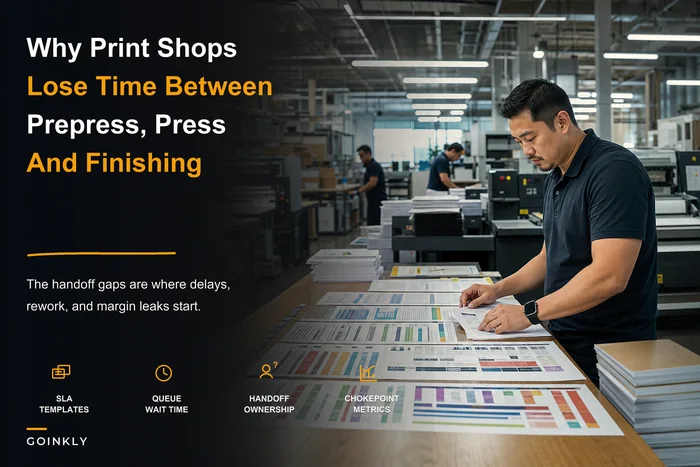



The file that gets printed is rarely the file the designer meant to print. That's the whole problem in one sentence.
You've got businesscardFINAL.pdf, businesscardFINALv2.pdf, businesscardFINALUSETHIS.pdf, and — my personal favorite — businesscardFINALUSETHISactualfinal.pdf. Someone rushes a reprint, grabs the wrong one, and now 2,500 cards go out with the old phone number. The customer catches it. You eat the reprint and the shipping.
Print shop file version control isn't glamorous, but it quietly decides whether your reprints, reorders, and rush jobs go smoothly or turn into fire drills. Most shops assume fixing this requires expensive software or a full DAM platform. It doesn't. It requires a handful of boring rules that everyone actually follows.
This is a decision-guide, not a theory dump. What to standardize, what to skip, and practical naming, retention, and archive recipes that work on a plain shared drive or an S3 bucket.
Start with the failure, not the solution
Before building any system, look at how your files actually go wrong. In real operations, version chaos almost always traces back to three specific moments:
-
The proof-to-production handoff. Designer approves a proof, then keeps tweaking the working file. Production pulls "the latest," which is now past the approved version.
-
The reorder six months later. Nobody remembers which file shipped. There are four candidates and no timestamp anyone trusts.
-
The rush edit. Client calls at 4pm, someone opens the file, makes a change, saves over the original with no backup. The approved version is just gone.
None of these are storage problems. They're labeling and discipline problems. Buying more Dropbox space fixes nothing. The lightest possible standard that closes these three gaps is the right target — anything heavier just gets ignored under deadline pressure.
A naming convention that survives a busy Friday
The best naming scheme is one a stressed press operator can read at a glance and not screw up. Long, clever schemes fail. People truncate them, skip fields, or invent their own.
Eliminate order confusion and delays.
GoInkly helps you manage every print order efficiently from submission to delivery.
- Centralized order tracking
- Production workflow management
- Inventory and supply monitoring
No credit card required
A format that holds up well in small shops:
``
[JobNumber][Client][Product][Version][Status].ext
``
A real example:
``
J4821Riversidebizcardv03APPROVED.pdf
J4821Riversidebizcardv04WIP.indd
``
A few rules that make this work:
-
Job number first, always. It sorts naturally and ties the file to your job ticket. Everything else is human-readable context.
-
Version is
v01,v02,v03— zero-padded so they sort correctly.v10should never appear abovev2in a file list. -
Status is a tiny controlled vocabulary. Only four allowed words:
WIP,PROOF,APPROVED,ARCHIVED. NoFINAL. Ban the word "final" from your shop entirely. It lies every time. -
No spaces, no client apostrophes, no
&. These break S3 keys and command-line tools later. Underscores and hyphens only.
The single biggest win here isn't the format itself — it's killing "final." Once APPROVED is the only word that means print-ready, and it can only be set through your proof sign-off step, wrong-file reprints drop hard. Shops enforcing this one rule cut file-related reprints noticeably within a month or two, before they've changed anything else.
Folder structure: shallow beats clever
Deep folder trees feel organized and quietly destroy findability. Every extra level is another place a file can hide. Keep it flat and predictable.
A structure that works for both a shared drive and an S3 bucket:
``
/clients/
  /riverside-dental/
    /J4821-bizcards/
      /source/
      /proofs/
      /approved/
      /shipped-print/
    /J4902-brochure/
``
The four sub-folders map directly to the file lifecycle:
| Folder | What lives here | Who touches it |
|---|---|---|
_source | Working files (INDD, PSD, AI, linked assets) | Design only |
_proofs | PDFs sent to the client | Design + CSR |
_approved | The exact file signed off for print | Locked after approval |
_shipped-print | The rendered file that actually went to press/RIP | Production only |
The approved and shipped-print split matters more than it looks. approved is what the client okayed. shipped-print is what your RIP actually consumed — flattened, imposed, color-managed. When a reprint comes in, you pull from _shipped-print and you know it'll match the last run. Skip this split and you get "why does the reprint look different?" tickets that eat an afternoon each.
One folder rule worth enforcing hard: once a file lands in _approved, nobody edits it in place. A change means a new version number and a fresh proof cycle. This is where discipline beats software every time.
Versioning without a version-control system
You don't need Git for print files. You need a way to answer one question reliably: is this the file that actually shipped?
Two lightweight tools do the job.
Checksums for the "did this change?" question. When you move a file into approved or shipped-print, generate a checksum and jot it in the job ticket. On Mac/Linux it's one command:
``
shasum -a 256 J4821Riversidebizcardv03APPROVED.pdf
``
Six months later, when there are three files and everyone's arguing, you compare the checksum against what's logged on the job. Match means it's the right one. No match means someone re-saved it, and you now know not to trust it. Ten seconds to run, and it settles disputes that otherwise burn twenty minutes.
A one-line version log per job. Not a database. A plain text or spreadsheet line appended each time a version changes state:
``
J4821 | v03 | APPROVED | 2026-03-14 | approved by client email 3/14 | sha:9f2a...
``
The log isn't for organizing files. It's for audit — proving what was approved and when, which is exactly the evidence you want when a client claims they never signed off on something. It also ties directly into the kind of proof and sign-off discipline that a repeatable end-to-end production workflow depends on.
A simple workflow for this looks like creating a checksum and appending a line to the version log whenever a file moves into approved or shipped-print.

This ties the checksum and the human sign-off into an auditable trail that answers "did this file ship?" without a VCS.
Retention: decide what to keep before your drive fills up
Design source files are big. Linked images, embedded fonts, high-res photography — a single brochure job can run 2–4 GB of source assets. Multiply that across a few thousand jobs a year and your "cheap" shared drive is suddenly a $200/month problem with painfully slow backups.
The mistake is treating all files the same. They aren't. Set retention by folder type:
| File type | Keep hot (fast storage) | Archive (cold/S3 Glacier) | Delete |
|---|---|---|---|
_source working files | 90 days after ship | 2 years | After 2 yrs unless retainer client |
_proofs | 90 days | 1 year | After 1 yr |
_approved PDFs | 1 year | Indefinite (they're small) | Never for active clients |
_shipped-print (RIP-ready) | 1 year | 3–5 years | Per client agreement |
The pattern worth internalizing: the approved and shipped PDFs are small and worth keeping nearly forever. The bulky source files are what you actually want to move to cold storage. Most shops do the opposite by accident — they leave 3 GB of source files sitting on fast storage and lose track of the 4 MB approved PDF that's actually valuable.
S3 makes this cheap if you use lifecycle rules. A simple setup:
-
Files land in Standard storage when uploaded.
-
After 90 days with no access, a lifecycle rule shifts
_sourcefolders to Glacier Instant Retrieval. -
After 2 years, another rule either deletes or moves to Deep Archive based on a tag.
You configure this once and it runs itself. The only judgment call is which clients get "keep indefinitely" — usually your retainer and repeat accounts.
Tagging and search recipes that actually get used
Folders answer "where does this go." Tags answer "find me everything like this." For a print shop the useful tags are few:
-
Client (redundant with folder, but useful for cross-client search)
-
Product type —
bizcard,banner,brochure,label -
Stock/spec —
14pt-gloss,13oz-vinyl— because reorders often start with "same as last time" -
Reorder flag —
repeat-jobso you can pull all recurring work fast
On a shared drive, the poor-man's tag system is putting these in the filename or in a companion .txt. On S3, use object tags or metadata. On a DAM-lite tool, you get real tag fields and saved searches.
The most useful search recipe in practice isn't fancy. It's: show me every APPROVED file for this client, newest first. If your naming and status vocabulary are consistent, that's a one-line search or a saved filter — and it answers the majority of reorder lookups.
One honest observation: tagging discipline degrades faster than naming discipline. People will keep naming files correctly under pressure but skip tags. So make tags automatic where you can — derive product type from the job ticket rather than asking someone to type it manually. If your order intake already captures product and stock, that data can flow straight into file metadata instead of being re-entered, which is one more reason tight order-entry integration pays off in places you wouldn't expect.
A real scenario
A mid-size commercial shop — around 12 people, mixed offset and wide-format, doing roughly 180–220 jobs a month — was losing time to file confusion constantly. No naming standard. Everything lived in a shared Google Drive with folders named after whoever created them. Reprints meant a CSR pinging the designer, the designer hunting for the file, and a 15–30 minute delay per lookup. A couple times a quarter, the wrong file shipped and turned into a reprint running $300–$600 all-in.
They didn't buy anything. They spent one afternoon setting the naming convention, the four-folder structure, and the status vocabulary, then about a week retrofitting active jobs. Old files got pushed to S3 with a lifecycle rule.
Within roughly two months, reorder lookups dropped to a couple of minutes because the _shipped-print folder plus a job-number search made the right file obvious. Wrong-file reprints effectively stopped — one in the following quarter versus the usual several. Their fast-storage bill came down once a few hundred gigs of stale source files rolled off to Glacier. Nothing dramatic on any single metric, but the daily friction was gone.
When this is worth it — and when it's overkill
Do this if:
-
You handle regular reorders and reprints (you're pulling old files monthly)
-
More than one person touches production files
-
You've eaten a reprint from a wrong-file mistake in the last year
Keep it minimal — or skip parts — if:
-
You're a one-person shop where the operator is also the only designer. Naming still helps; the folder split and checksums may be more than you need.
-
Every job is truly one-off with no reorders. Then retention rules matter more than versioning.
Shops tempted to buy a full enterprise DAM to solve a labeling problem should pump the brakes. A 6-person shop doesn't need a $500/month asset platform. Start with the naming convention and folder structure — free, on the drive you already have. Add S3 lifecycle rules when storage cost or backup speed actually hurts. Consider a DAM-lite tool only when tag-based search across thousands of assets becomes a daily need.
The one thing to change this week
Ban the word "final" and make APPROVED mean exactly one thing — a file that passed proof sign-off and lives, untouched, in the _approved folder. That single rule closes the most expensive gap, and it costs nothing but agreement.
Everything else here — the version log, the checksums, the S3 lifecycle rules, the tags — layers on top of that foundation. Add each piece when the pain justifies it, not before. The shops that stay sane aren't the ones with the fanciest tooling. They're the ones where a tired operator on a Friday afternoon can look at a filename and know, without asking anyone, that it's the right one.
Everything else here — the version log, the checksums, the S3 lifecycle rules, the tags — layers on top of that foundation. Add each piece when the pain justifies it, not before. The shops that stay sane aren't the ones with the fanciest tooling. They're the ones where a tired operator on a Friday afternoon can look at a filename and know, without asking anyone, that it's the right one.
Ready to simplify your print shop operations?
Join 500+ print shops using GoInkly to save time, reduce errors, and improve customer satisfaction.